QuizModeOn Zoom App
QuizModeOn Team · · Updated · 2 min read
QuizModeOn is now part of the Zoom Marketplace to make video meetings awesome! With our QuizModeOn Zoom App, you can host and join QuizModeOn events directly within Zoom.
Don’t forget to check out the explanatory video: https://www.youtube.com/watch?v=0e8aUm4n7D8
How to host a QuizModeOn event within a Zoom meeting?
- Log in to your Zoom account and click Apps.
- Search for QuizModeOn in the Zoom App Marketplace and click Add. The app is now available in your My Apps section.
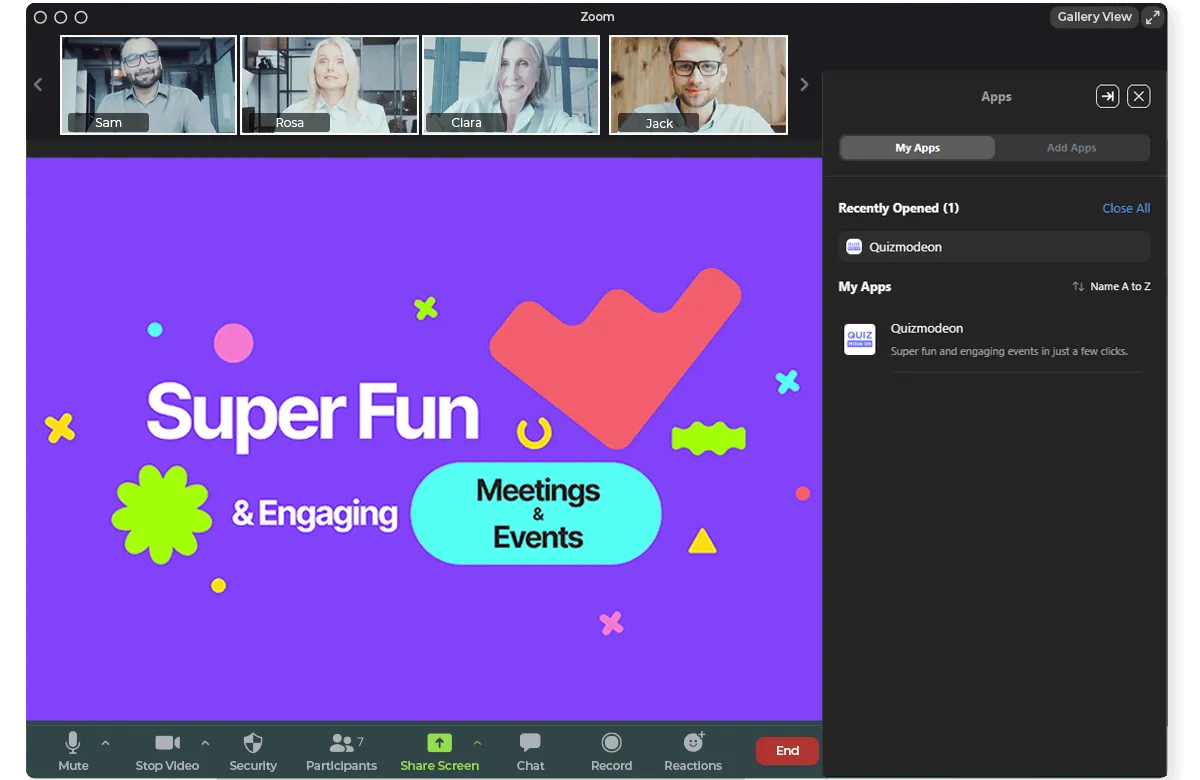
- During your virtual meeting open the QuizModeOn app in the Apps section and click Present. You’ll be asked to enter your Presenter PIN that can be found.
Presenters will require QuizModeOn accounts, participants instead can play without accounts.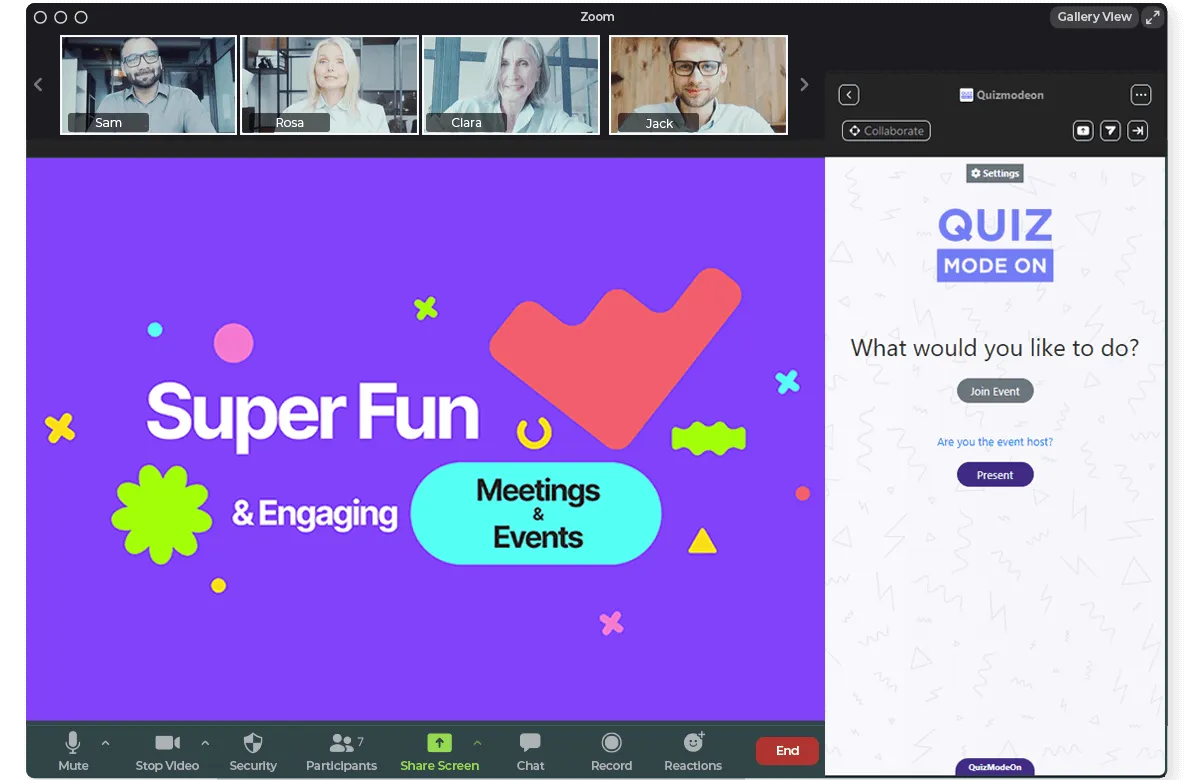
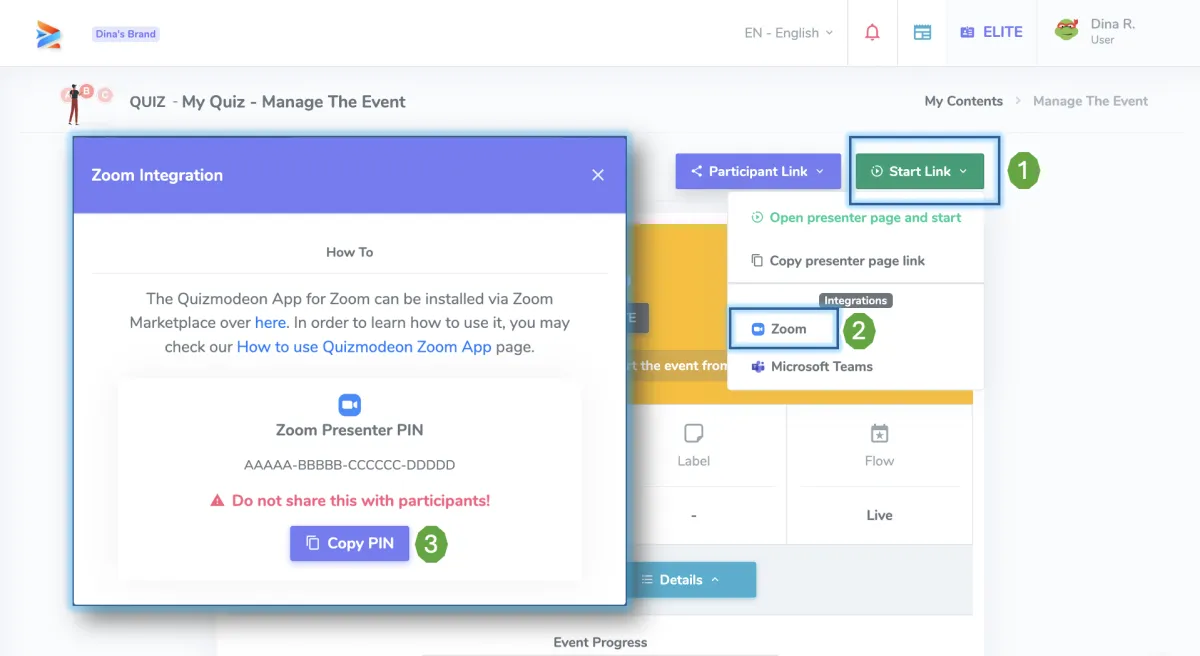
- Go to on the QuizModeOn portal and find your event. In the event management page you will see the Zoom App Integration. Click to see the Presenter PIN and copy it.
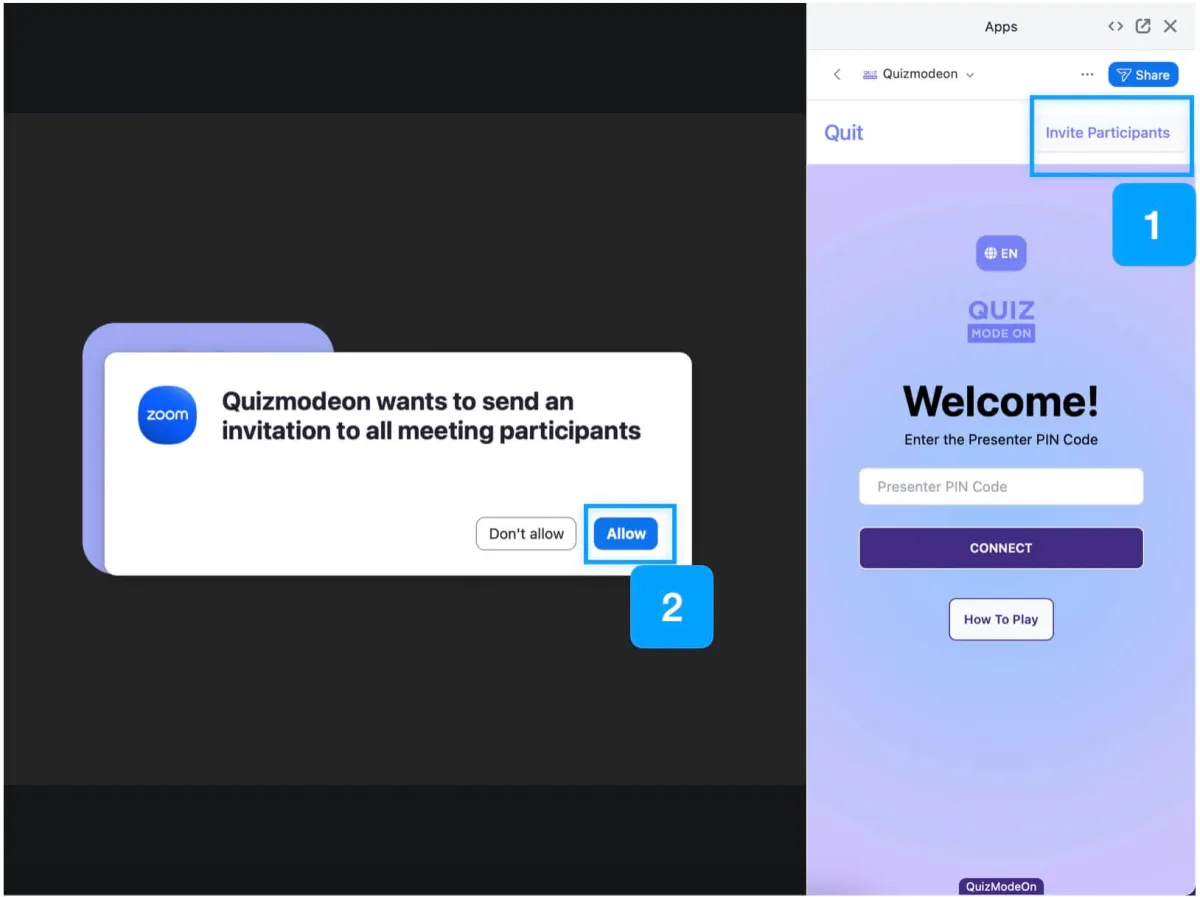
- Share your Zoom App with the participants by clicking the Invite Participants button at the top of the app. All the active Participants in your Zoom session will receive an invitation link and a pop-up on the screen.
How to participate in QuizModeOn events within a Zoom meeting?
- Hosts/Presenters can invite participants to use the QuizModeOn app by clicking the Invite Participants button at the top of the app. This shares the link to the Zoom app marketplace with all participants in the virtual meeting.
- Add the QuizModeOn app to your selection of apps and click Join in the right-hand side panel.
You can join Quizmodeon events also outside of the Zoom app. They can be accessed via the https://play.quizmodeon.com link that requires you enter a PIN to join a game. - If the host has already entered the Presenter PIN the participant will be automatically redirected to the event’s lobby screen, otherwise you can type the game PIN and hit Enter to join the QuizModeOn event manually. You don’t need a QuizModeOn account to join an event.
- The questions appear App Sidepanel, and you submit answers in the QuizModeOn App within the Zoom meeting. There’s no need for a second screen or another device.

Written byPeanut