QuizModeOn Teams App
QuizModeOn Team · · Updated · 2 min read
QuizModeOn is now part of the Teams App Marketplace to make video meetings awesome! With our QuizModeOn Teams App, you can host and join QuizModeOn events directly within Teams.
How to host a QuizModeOn event within a Teams meeting?
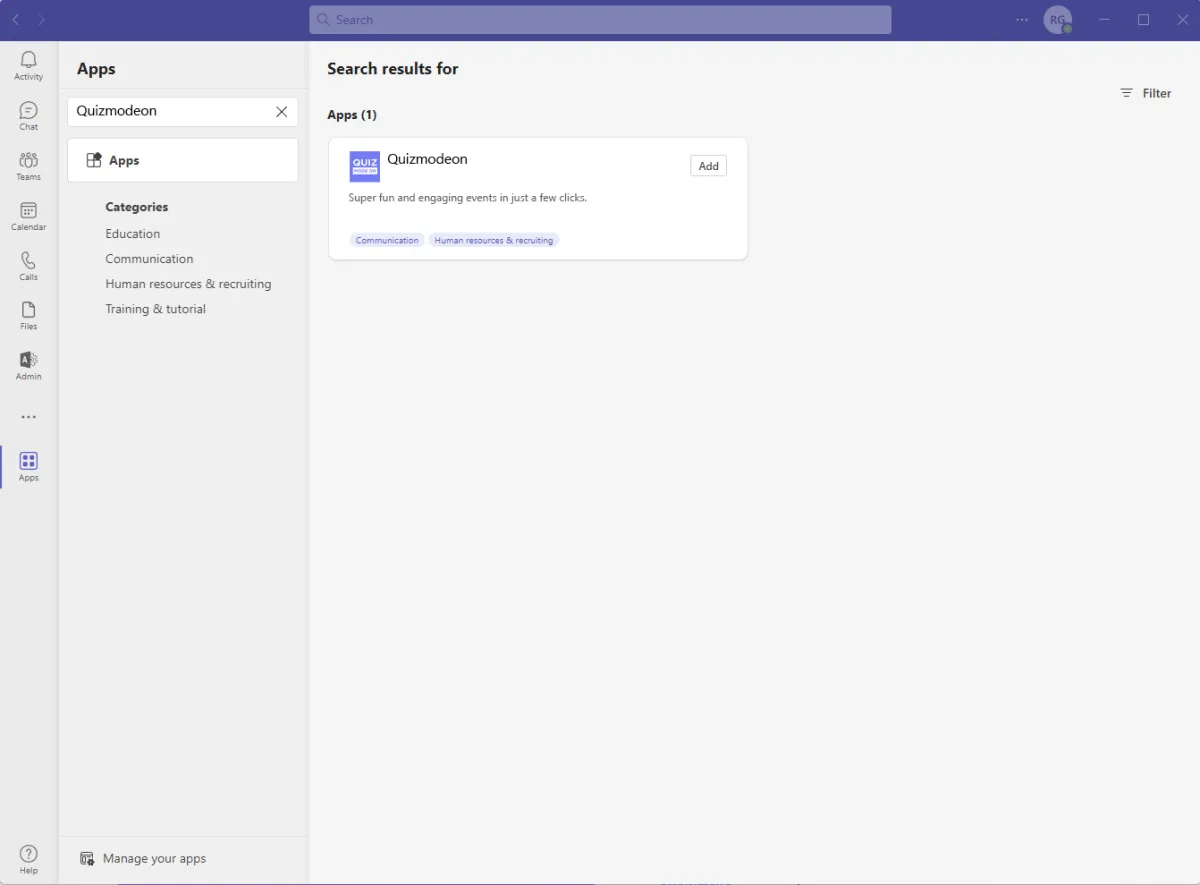
- Log in to your Teams account and click Apps.
- Search for Quizmodeon and click Add. The app is now available in your Apps section.
- During your virtual meeting open the QuizModeOn App in the Apps section and click Present. You’ll be asked to enter your Presenter PIN that can be found on the QuizModeOn Portal management console https://portal.quizmodeon.com.
Presenters will require QuizModeOn accounts, participants instead can play without QuizModeOn accounts.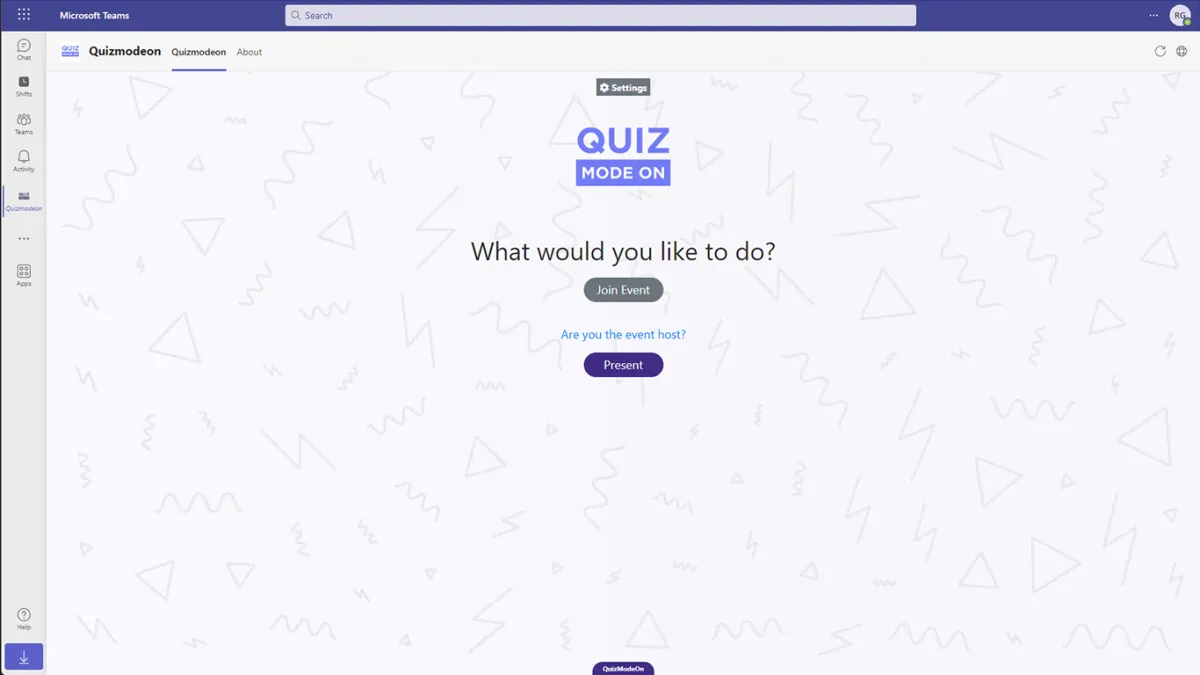
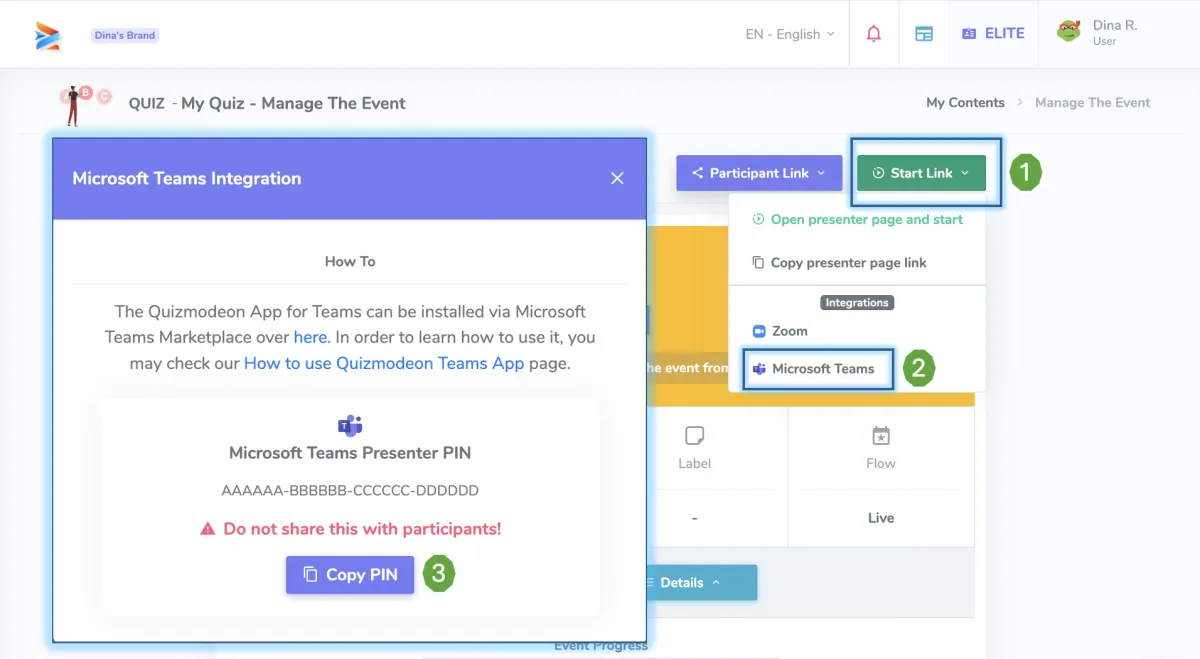
- Go to on the QuizModeOn portal and find your event. In the event management page you will see the Teams App Integration. Click to see the Presenter PIN and copy it.
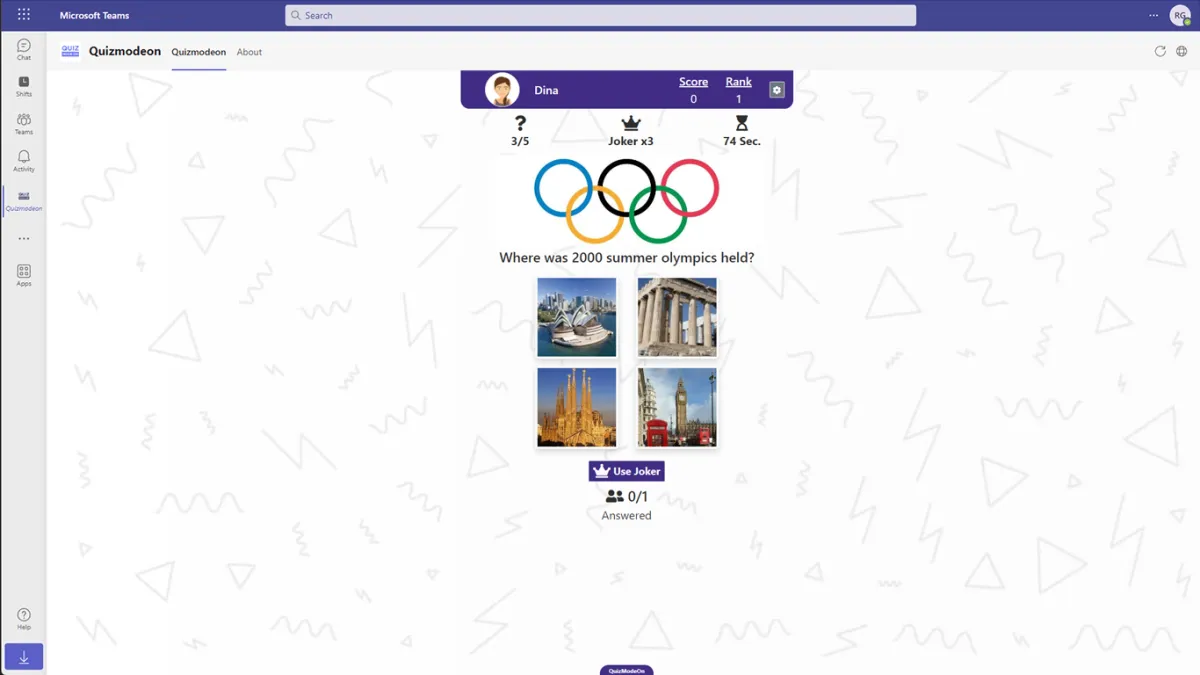
- The participants should receive the PIN code from the meeting host. They can play via the Teams Tab by using the participant PIN.
How to participate in QuizModeOn events within a Teams meeting?
- Hosts/Presenters can invite participants to use the QuizModeOn app by clicking the arrow icon at the top of the app. This shares the link to the Teams app marketplace with all participants in the virtual meeting.
- Add the QuizModeOn app to your selection of apps and click Join in the right-hand side panel.
You can join QuizModeOn events also outside of the Teams app. They can be accessed via the https://play.quizmodeon.com link that requires you enter a PIN to join a game. - After the host shares their screen, you can type the game PIN and hit Enter to join the QuizModeOn event. You don’t need a QuizModeOn account to join an event.
- The questions appear on the shared screen, and you submit answers in the QuizModeOn App within the Teams meeting. There’s no need for a second screen or another device.
How to uninstall the QuizModeOn Teams app?
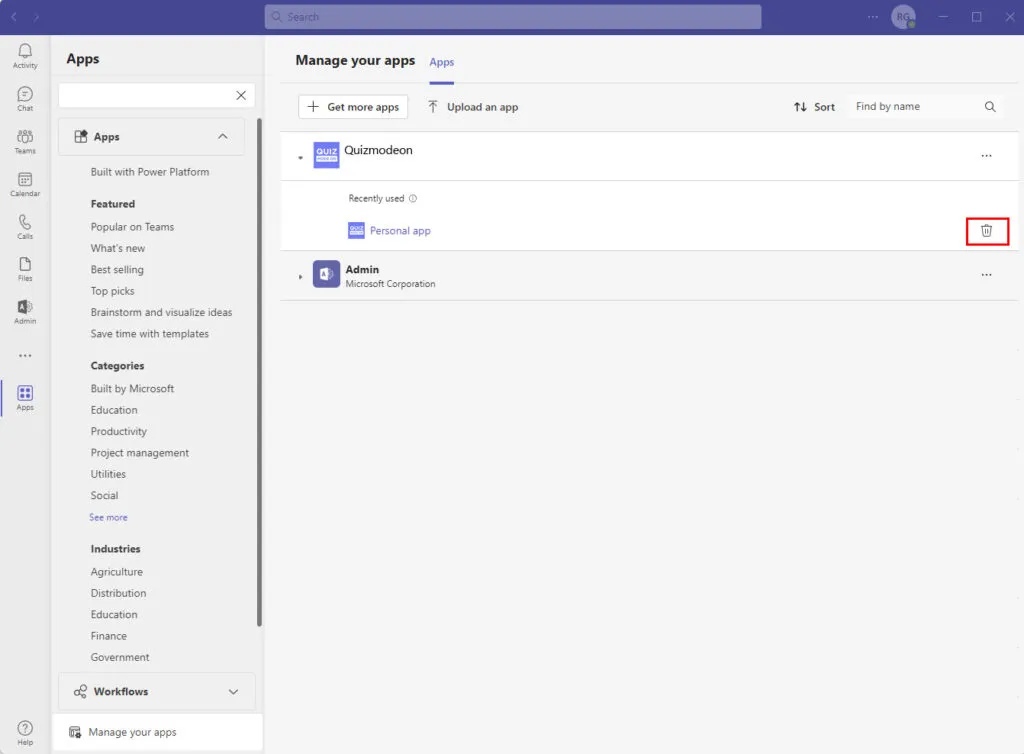
- Open your Teams application and navigate to Apps
- Click ‘Manage your apps’
- Choose QuizModeOn and click to the remove button shown in the picture below.
If you or your company are using Zoom for your online meetings, you can check out our Zoom App post over here or access it directly from the Zoom Marketplace.
For any additional information you may contact us.

Written byJazz